

You built your WordPress website, hired someone to design it, maybe even spent good money on branding. But months later, you’re nowhere to be found on Google.
Sound familiar?
The frustrating truth is that most WordPress websites are set up with SEO problems baked right in from the start — and most business owners have no idea they exist. The good news: the majority of these mistakes are completely fixable, often without spending a cent.
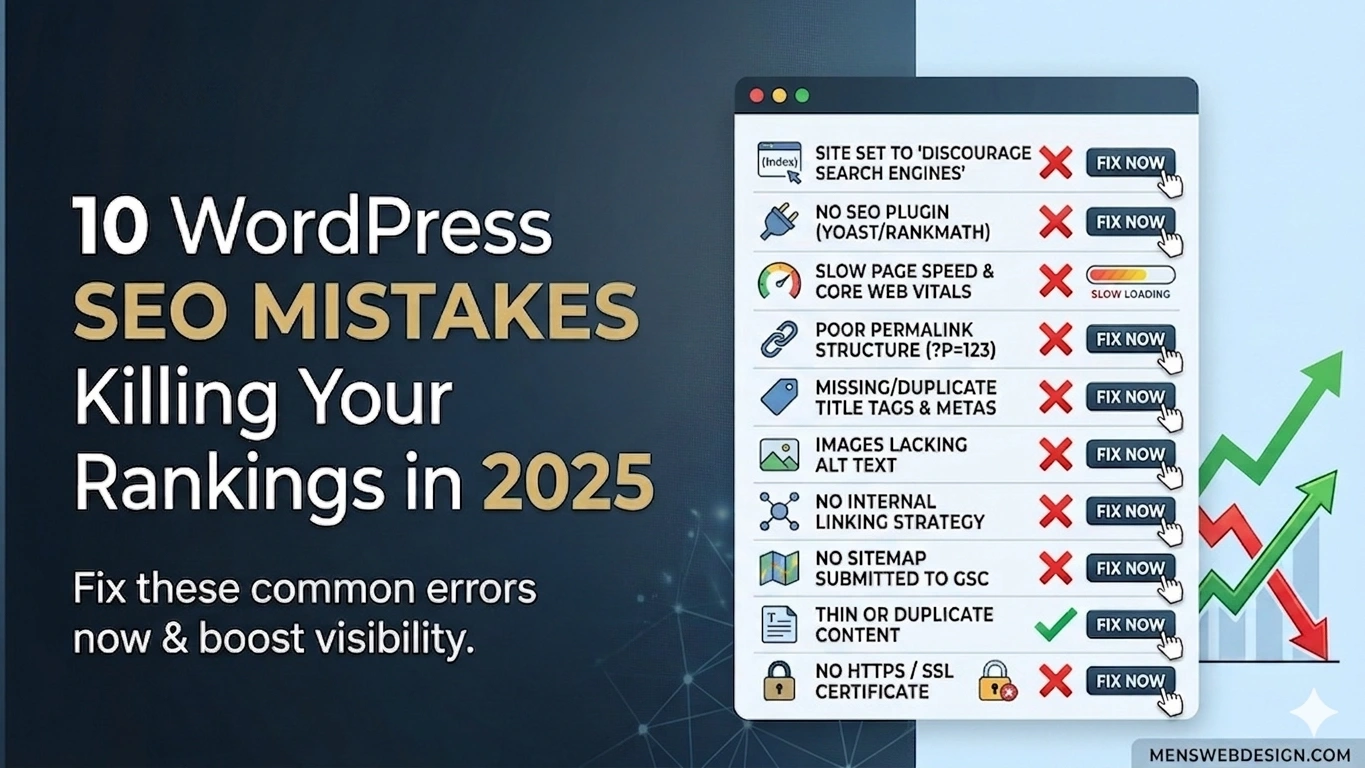
In this post, I’ll walk you through the 10 most common WordPress SEO mistakes I see when auditing business websites — and exactly what you need to do to fix each one.
Why WordPress SEO Matters More Than You Think
WordPress powers over 43% of all websites on the internet. It’s flexible, affordable, and beginner-friendly. But that accessibility comes with a downside: it’s very easy to set up a WordPress site that looks professional but is technically broken from an SEO perspective.
Google doesn’t rank websites based on how good they look. It ranks them based on how well they’re built, how fast they load, how trustworthy they are, and how relevant their content is to search queries.
If your WordPress site is making any of the mistakes below, you’re leaving rankings — and customers — on the table.
Mistake #1: Your Site Is Set to “Discourage Search Engines”
This is the most embarrassing mistake on this list, and you’d be surprised how often it happens.
WordPress has a setting under Settings → Reading called “Discourage search engines from indexing this site.” It’s a checkbox that developers often tick during the build phase so Google doesn’t index an incomplete website.
The problem? They forget to untick it before launch.
The fix: Go to Settings → Reading in your WordPress dashboard. Make sure the “Discourage search engines” checkbox is NOT ticked. Save changes. Done.
Mistake #2: No SEO Plugin (Or a Poorly Configured One)
WordPress doesn’t include proper SEO features out of the box. Without an SEO plugin, your pages won’t have proper meta titles, meta descriptions, XML sitemaps, or schema markup — all of which are essential for Google to understand and rank your content.
The fix: Install either Yoast SEO or RankMath (both have excellent free versions). Once installed:
- Set a meta title and meta description for every page and post
- Generate and submit your XML sitemap to Google Search Console
- Configure your homepage SEO settings with your primary keyword
RankMath is my personal recommendation for 2025 — the free version includes keyword tracking, schema markup, and a built-in SEO score for each post, all of which Yoast locks behind a premium plan.
Mistake #3: Slow Page Speed (And Ignoring Core Web Vitals)
Page speed is a direct Google ranking factor. A slow WordPress site doesn’t just frustrate visitors — it actively hurts your search rankings.
Most slow WordPress sites share the same problems: unoptimised images, too many plugins, cheap shared hosting, and no caching in place.
The fix:
- Install WP Rocket (paid) or W3 Total Cache (free) for caching
- Convert all images to WebP format and compress them before uploading
- Use a CDN like Cloudflare (free tier is excellent) to serve your site faster globally
- Upgrade to a managed WordPress host like Kinsta, WP Engine, or SiteGround if on cheap shared hosting
- Audit and remove plugins you don’t actively use — each one adds load time
For a full breakdown of page speed optimisation, read my post on Core Web Vitals in 2025.
Mistake #4: Using the Wrong Permalink Structure
By default, WordPress sometimes sets URLs to look like this: https://yoursite.com/?p=123
This tells Google absolutely nothing about what the page is about. It wastes one of the most valuable SEO real estate spots you have — the URL itself.
The fix: Go to Settings → Permalinks and select “Post name” as your permalink structure. This gives you clean, keyword-rich URLs like: https://yoursite.com/wordpress-seo-tips
Do this before you launch your site. Changing permalink structure on a live site with existing Google traffic requires setting up 301 redirects, which adds complexity.
Mistake #5: Missing or Duplicate Title Tags and Meta Descriptions
Every single page on your website needs a unique meta title and meta description. These are the text snippets that appear in Google search results — they’re your first impression on a potential customer.
Many WordPress sites either leave these blank (causing Google to auto-generate them, often poorly) or accidentally duplicate them across multiple pages.
The fix using RankMath or Yoast:
- Edit each page/post and scroll to the SEO plugin panel at the bottom
- Write a unique meta title: include your main keyword and keep it under 60 characters
- Write a unique meta description: summarise the page’s value and keep it under 160 characters
- Never copy-paste the same title or description across different pages
Pro tip: Your homepage meta title should follow this format: Primary Keyword | Brand Name Example: WordPress Web Design Sri Lanka | MensWebDesign
Mistake #6: Images With No Alt Text
Every image on your website should have descriptive alt text. Alt text serves two purposes: it helps visually impaired users understand your images via screen readers, and it tells Google what your image depicts — which helps with both image search and overall page relevance.
Most business owners upload images and leave the alt text field completely blank.
The fix:
- For every image you upload, fill in the Alt Text field in the WordPress Media Library
- Describe what’s in the image naturally — don’t stuff keywords
- Good example:
WordPress website design for a restaurant in Colombo - Bad example:
wordpress web design wordpress developer sri lanka
Mistake #7: No Internal Linking Strategy
Internal links are links within your own website that connect one page or post to another. They help Google understand the structure of your site, discover new pages, and determine which pages are most important.
Most WordPress business sites have almost zero internal links — especially blog posts that never link to service pages or other posts.
The fix: Every time you publish a new blog post or page, ask yourself:
- Which other posts or pages on my site are relevant to this topic?
- Can I naturally link to my services page from this content?
Aim for 3–5 internal links per post. Link your blog posts back to your service pages whenever relevant. This passes “link equity” to the pages you most want to rank.
Mistake #8: Not Submitting a Sitemap to Google Search Console
Google needs to discover and crawl your pages before it can rank them. An XML sitemap is essentially a roadmap of your entire website that you hand directly to Google.
Many WordPress site owners never set up Google Search Console at all — let alone submit a sitemap.
The fix:
- Install RankMath or Yoast — both auto-generate your sitemap
- Your sitemap URL will be:
https://yoursite.com/sitemap_index.xml - Go to Google Search Console
- Add and verify your website property
- Navigate to Sitemaps and submit your sitemap URL
- Check back after a few days to confirm pages are being indexed
Mistake #9: Thin or Duplicate Content Across Pages
“Thin content” means pages with very little text — often service pages that just say “We offer web design services. Contact us today.” Google doesn’t rank pages that don’t provide genuine value to searchers.
“Duplicate content” means having the same (or near-identical) text appearing on multiple pages of your site — a common issue with WooCommerce product variations or location pages built from a template.
The fix:
- Each service page should have at least 400–600 words of unique, helpful content
- Answer the questions your potential clients are actually asking
- For WooCommerce: use canonical tags on product variation pages to point to the main product
- For location pages: write genuinely unique content for each location — don’t just swap the city name
Mistake #10: No HTTPS / SSL Certificate
If your website still uses http:// instead of https://, Google marks it as “Not Secure” in the browser. This destroys visitor trust and is also a negative ranking signal.
In 2025, there is no excuse for a website without SSL. Most hosting providers include a free SSL certificate via Let’s Encrypt.
The fix:
- Contact your hosting provider and enable the free SSL certificate
- In WordPress, install the Really Simple SSL plugin — it handles the HTTP to HTTPS redirect automatically
- Verify your HTTPS version is set as the preferred URL in Google Search Console
Quick-Reference Fix Checklist
| # | Mistake | Fix |
|---|---|---|
| 1 | Search engines discouraged | Settings → Reading → Uncheck |
| 2 | No SEO plugin | Install RankMath or Yoast |
| 3 | Slow page speed | WP Rocket + CDN + image compression |
| 4 | Wrong permalink structure | Settings → Permalinks → Post name |
| 5 | Missing meta titles/descriptions | Configure in RankMath/Yoast per page |
| 6 | Images missing alt text | Add descriptive alt text to every image |
| 7 | No internal linking | 3–5 internal links per post |
| 8 | No sitemap submitted | Submit to Google Search Console |
| 9 | Thin or duplicate content | Write 400+ words of unique content per page |
| 10 | No HTTPS | Enable SSL + install Really Simple SSL |
Frequently Asked Questions
Why is my WordPress site not ranking on Google?
The most common reasons are slow page speed, missing meta tags, being set to discourage search engines, no SSL certificate, or thin content. Start by checking Settings → Reading and running your site through Google PageSpeed Insights.
Does WordPress have built-in SEO?
WordPress has basic SEO foundations like clean URLs and post titles, but you need a plugin like Yoast SEO or RankMath to properly handle meta tags, sitemaps, and schema markup.
Which is the best WordPress SEO plugin in 2026?
RankMath is my top recommendation for 2026. Its free version includes keyword tracking, schema markup, and a built-in content score — features that Yoast reserves for its paid plan.
How long does it take for WordPress SEO fixes to work?
Technical fixes like speed improvements can show results within weeks. Content and on-page SEO changes typically take 2–6 months to reflect in rankings depending on competition and your site’s authority.
Final Thoughts
WordPress is an incredibly powerful platform for business websites — but only when it’s set up correctly. Most of the mistakes on this list are quick wins that don’t require a developer or a big budget to fix.
Start with the first two: make sure your site isn’t blocking search engines, and get an SEO plugin installed and configured. Those two steps alone can unlock significant ranking improvements.
If you’d like a professional eye on your WordPress site, I offer full Technical SEO audits that cover all of the above and more — with a clear, prioritised action plan tailored to your business.