

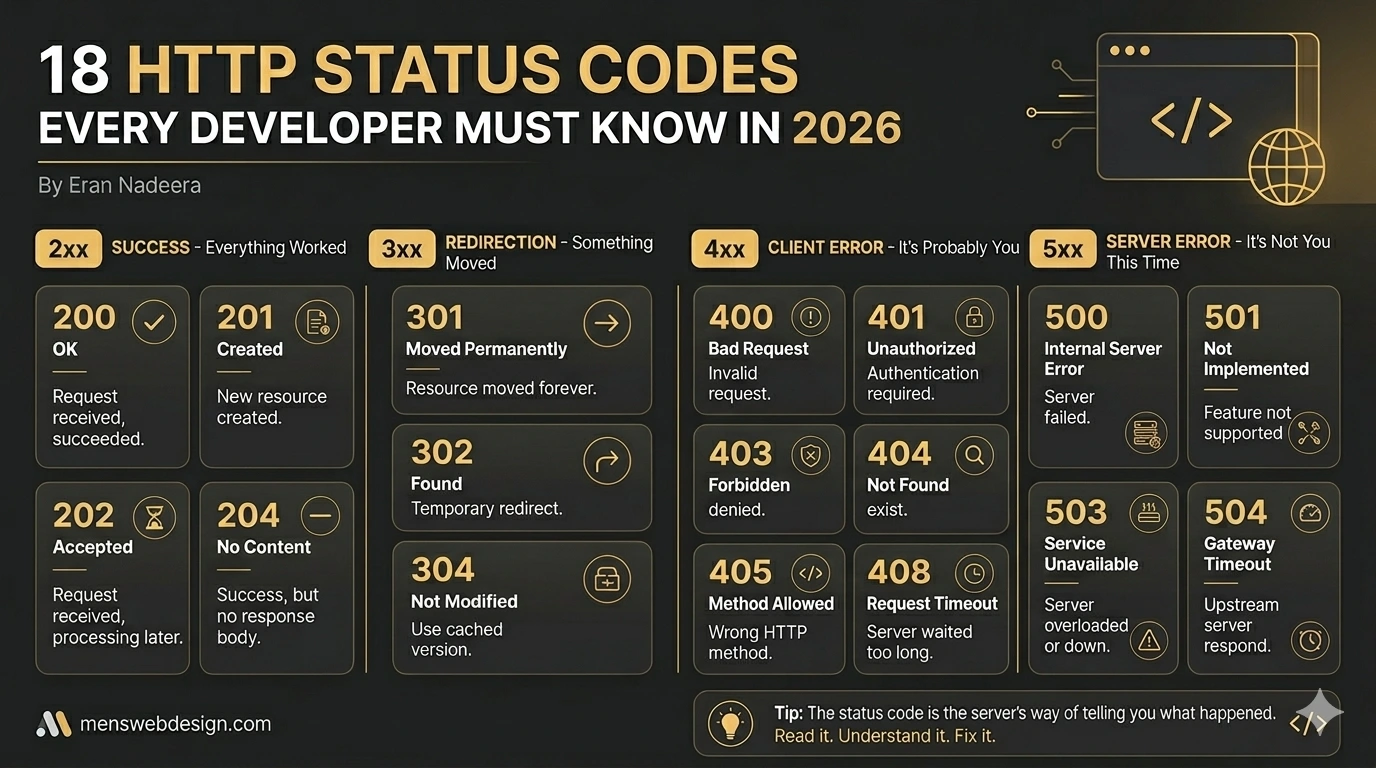
Every time you visit a website, your browser and the server have a conversation. You ask for a page, the server responds — and every response comes with a 3-digit code that tells you exactly what happened.
Most of the time, that code is 200 (everything worked fine) and you never see it. But when something goes wrong — a broken page, a redirect loop, a server crash — that code is the first clue that tells you where to start debugging.
Whether you’re a developer trying to fix a production issue, a business owner wondering why your page disappeared from Google, or a beginner just learning how the web works, understanding HTTP status codes is non-negotiable.
In this guide, I’ll walk through all 18 of the most common HTTP status codes, what they mean, why they happen, and — most importantly — what to do when you see them.
What Are HTTP Status Codes?
HTTP status codes are standardised 3-digit numbers that a web server returns in response to a browser’s request. They’re part of the HTTP protocol — the foundation of how data is transferred across the web.
Every status code belongs to one of five groups, identified by the first digit:
| Class | Range | Meaning |
|---|---|---|
| 1xx | 100–199 | Informational — request received, continuing |
| 2xx | 200–299 | Success — request received and processed |
| 3xx | 300–399 | Redirection — further action needed |
| 4xx | 400–499 | Client Error — problem with the request |
| 5xx | 500–599 | Server Error — problem on the server side |
In this guide, we’ll cover the four groups you’ll encounter most often: 2xx, 3xx, 4xx, and 5xx.
2xx — Success: Everything Worked
2xx codes mean the request was received, understood, and processed successfully. These are the good guys.
200 — OK ✅
The most common status code on the web. A 200 response means the request was successful and the server returned the requested content.
What it means: Everything worked exactly as expected. The page loaded, the API returned data, the form submitted correctly.
When you see it: Every normal page load, successful API call, or form submission.
Action needed: None — this is what you want to see.
201 — Created
A 201 response means the request was successful and a new resource was created as a result.
What it means: Most commonly seen in REST APIs when a POST request successfully creates a new record — for example, creating a new user account or submitting a new blog post via API.
When you see it: API development, form submissions that create new database records.
Action needed: None — this is a success response.
202 — Accepted
A 202 means the request has been received and will be processed — but the processing hasn’t been completed yet.
What it means: The server has queued the request for later processing. Common in background job systems or email sending queues.
When you see it: Bulk email sends, background video processing, async API tasks.
Action needed: None immediately — wait for the async process to complete.
204 — No Content
A 204 means the request was successful but there’s no content to return in the response body.
What it means: The action was performed successfully, but there’s nothing to show back. Common in DELETE requests or preference update calls.
When you see it: Deleting a resource via API, saving settings without a confirmation page.
Action needed: None — this is intentional and correct.
3xx — Redirection: Something Moved
3xx codes mean the requested resource has moved and the browser needs to go somewhere else to find it. These are critical for SEO — getting them wrong can cost you rankings.
301 — Moved Permanently ➡️
The single most important redirect code for SEO. A 301 tells both browsers and Google that a page has permanently moved to a new URL.
What it means: The old URL is gone for good. The new URL is the canonical destination. Google will transfer the original page’s SEO authority (link equity) to the new URL over time.
When you see it: Site migrations, URL restructuring, merging duplicate pages, switching from HTTP to HTTPS.
SEO impact: Positive when used correctly. Use 301 for all permanent moves.
Action needed: Make sure the destination URL is the correct, final URL. Avoid redirect chains (301 → 301 → 301) as each hop loses a small amount of SEO value.
302 — Found (Temporary Redirect)
A 302 tells the browser to go to a different URL — but only temporarily. The original URL is still considered the “real” page.
What it means: The resource has temporarily moved. Google will NOT transfer SEO authority to the destination URL because the original is expected to return.
When you see it: A/B testing, temporary promotional pages, maintenance pages.
SEO impact: No SEO value transferred. If you use a 302 when you meant a 301, you’re leaving rankings behind.
Action needed: Only use 302 for genuinely temporary redirects. If the move is permanent, switch to 301 immediately.
304 — Not Modified
A 304 response tells the browser that the page hasn’t changed since the last time it was cached, so there’s no need to re-download it.
What it means: The browser sent a conditional request (checking if the page changed), and the server confirmed it hasn’t. The browser uses its cached version instead.
When you see it: Repeat visits to cached pages — you’ll see it frequently in browser DevTools network tabs.
Action needed: None — this is correct caching behaviour and actually improves page speed.
4xx — Client Errors: It’s Probably You
4xx codes mean the problem is on the client side — something about the request itself is wrong. These are the errors your visitors and Google’s crawlers encounter.
400 — Bad Request
A 400 error means the server couldn’t understand the request because the syntax was invalid or malformed.
What it means: The browser sent something the server couldn’t parse — corrupted request data, invalid query parameters, or a malformed URL.
When you see it: Form submissions with invalid data, API requests with incorrect formatting, corrupted URL parameters.
Fix: Check the request format. For API developers, validate input data before sending. For website owners, check for broken form integrations or corrupted URL parameters.
401 — Unauthorized 🔒
A 401 means authentication is required and hasn’t been provided (or the provided credentials are invalid).
What it means: You need to log in to access this resource. The server knows who you’re trying to be — it just hasn’t verified your identity yet.
When you see it: Password-protected pages, API endpoints that require an API key, admin areas.
Fix: Log in with valid credentials. For API developers, include the correct authentication header (Bearer token, API key, etc.).
403 — Forbidden 🚫
A 403 means the server understood the request but is refusing to allow access — even with authentication.
What it means: Unlike 401, you’re identified but still not allowed. The server knows who you are and has decided you don’t have permission.
When you see it: File permission errors on servers, IP-blocked addresses, attempting to access restricted admin directories.
Fix for website owners: Check file and folder permissions on your server (directories should typically be 755, files 644). For WordPress, check if a security plugin is blocking access.
404 — Not Found 🔍
The most famous status code on the internet. A 404 means the server couldn’t find the requested page or resource.
What it means: The page simply doesn’t exist at that URL. It may have been deleted, moved without a redirect, or the URL was typed incorrectly.
SEO impact: 404 errors on pages that previously had backlinks or rankings waste your SEO value. Google will eventually de-index 404 pages.
Fix:
- If the page was moved: set up a 301 redirect to the new URL
- If the page was deleted and had SEO value: restore it or redirect to the most relevant existing page
- For all sites: create a helpful custom 404 page that guides visitors back to your content — don’t just show a blank error screen
405 — Method Not Allowed
A 405 means the HTTP method used in the request isn’t supported for that endpoint.
What it means: For example, sending a POST request to a URL that only accepts GET requests, or trying to DELETE a read-only resource.
When you see it: API development, incorrectly configured form action methods.
Fix: Check the API documentation for the correct HTTP method (GET, POST, PUT, DELETE, PATCH) for the endpoint you’re calling.
408 — Request Timeout ⏱️
A 408 means the server waited too long for the client to send a complete request and gave up.
What it means: The browser started sending a request but took too long — usually due to a very slow internet connection or a large file upload that stalled.
When you see it: Slow connections, large file uploads, overloaded networks.
Fix: Retry the request. For developers handling large uploads, increase the server’s timeout settings or implement chunked uploading.
5xx — Server Errors: It’s Not You This Time
5xx errors mean the server received the request but failed to complete it. These are always server-side problems — not the user’s fault.
500 — Internal Server Error ⚠️
The most common and frustrating server error. A 500 means something went wrong on the server, but it’s not being specific about what.
Common causes:
- Corrupt
.htaccessfile (especially on WordPress) - PHP memory limit exceeded
- A broken plugin or theme update
- Incorrect file permissions
- Syntax errors in server-side code
Fix for WordPress:
- Deactivate all plugins via FTP (rename the plugins folder)
- Switch to a default theme
- Check your
.htaccessfile — regenerate it from WordPress Settings → Permalinks - Increase PHP memory limit in
wp-config.php:define('WP_MEMORY_LIMIT', '256M'); - Check your server error logs for the specific error line
501 — Not Implemented
A 501 means the server doesn’t support the functionality required to fulfil the request.
What it means: The server doesn’t recognise the HTTP method being used or hasn’t implemented the feature being requested.
When you see it: Rare in normal browsing — usually a server configuration issue or an unsupported HTTP method.
Fix: Check server configuration and ensure the required modules are enabled.
502 — Bad Gateway
A 502 means the server acting as a gateway (like a reverse proxy or load balancer) received an invalid response from an upstream server.
What it means: Your server is connected to another server behind the scenes (common with CDNs, reverse proxies, and cloud hosting), and that upstream server returned garbage.
When you see it: Cloudflare + origin server issues, overloaded upstream servers, server restarts.
Fix: Wait a few minutes and retry — many 502 errors are temporary. If persistent, check your hosting provider’s status page, review your Cloudflare settings, or restart your origin server.
503 — Service Unavailable ⚠️
A 503 means the server is temporarily unable to handle the request — usually due to overload or scheduled maintenance.
What it means: The server is alive but overwhelmed or intentionally taken offline.
SEO note: If you’re doing planned maintenance, return a 503 with a Retry-After header. This tells Google the downtime is temporary and prevents de-indexing.
Fix: Scale your server resources during traffic spikes, implement a proper maintenance mode (not a 200 page that says “under maintenance”), and add a Retry-After header during planned downtime.
504 — Gateway Timeout ⏱️
A 504 means the gateway server didn’t receive a response from the upstream server in time.
What it means: Similar to 502, but specifically a timeout issue — the upstream server is too slow to respond rather than returning an invalid response.
When you see it: Overloaded backend servers, long-running database queries, slow API integrations.
Fix: Optimise slow database queries, increase server timeout settings, check for runaway processes on your origin server, or upgrade server resources.
HTTP Status Codes Quick Reference
| Code | Name | Class | SEO Impact |
|---|---|---|---|
| 200 | OK | Success | ✅ Positive |
| 201 | Created | Success | ✅ Neutral |
| 202 | Accepted | Success | ✅ Neutral |
| 204 | No Content | Success | ✅ Neutral |
| 301 | Moved Permanently | Redirect | ✅ Passes SEO value |
| 302 | Found | Redirect | ⚠️ No SEO value passed |
| 304 | Not Modified | Redirect | ✅ Good for caching |
| 400 | Bad Request | Client Error | ⚠️ Fix the request |
| 401 | Unauthorized | Client Error | ⚠️ Auth required |
| 403 | Forbidden | Client Error | ⚠️ Check permissions |
| 404 | Not Found | Client Error | ❌ Fix with 301 redirect |
| 405 | Method Not Allowed | Client Error | ⚠️ Check HTTP method |
| 408 | Request Timeout | Client Error | ⚠️ Retry or optimise |
| 500 | Internal Server Error | Server Error | ❌ Fix immediately |
| 501 | Not Implemented | Server Error | ❌ Server config issue |
| 502 | Bad Gateway | Server Error | ❌ Check upstream server |
| 503 | Service Unavailable | Server Error | ⚠️ Use Retry-After header |
| 504 | Gateway Timeout | Server Error | ❌ Optimise backend |
Why HTTP Status Codes Matter for SEO
From a Technical SEO perspective, HTTP status codes are one of the first things I check in every website audit. Here’s why they matter for your Google rankings:
404 errors on pages that previously ranked or had backlinks are a direct loss of SEO value. Every dead link pointing to a 404 page is wasted ranking potential.
301 vs 302 redirects make a huge difference during site migrations. Using the wrong redirect type can mean losing months or years of accumulated SEO authority on your old URLs.
503 errors without proper headers during maintenance can trigger Google to de-index your pages if the downtime lasts too long.
500 errors that go unnoticed can silently kill your rankings. Google’s crawler will repeatedly hit a 500, fail to index the page, and eventually drop it from search results.
I check for all of these in every Technical SEO audit — they’re often the hidden reason a previously strong page suddenly loses its rankings.
Frequently Asked Questions
What is an HTTP status code?
An HTTP status code is a 3-digit number a server sends back to tell you the result of a request. They’re grouped into classes: 2xx (success), 3xx (redirection), 4xx (client errors), and 5xx (server errors).
What is the difference between a 301 and 302 redirect?
A 301 is permanent and passes SEO authority to the new URL. A 302 is temporary and does not pass SEO value. For any permanent page move, always use a 301.
How do I fix a 404 Not Found error?
Set up a 301 redirect from the old URL to the most relevant live page, or restore the deleted page if it had SEO value. Always create a helpful custom 404 page as a fallback.
What causes a 500 Internal Server Error?
Common causes include a corrupt .htaccess file, exceeded PHP memory limit, broken plugins or themes on WordPress, incorrect file permissions, or server-side code errors. Check your server error logs for the specific cause.
Final Thoughts
HTTP status codes are the language your server uses to communicate what’s happening. Once you understand them, debugging becomes faster, SEO issues become easier to spot, and you’ll spend far less time guessing what went wrong.
Bookmark the quick reference table above — you’ll come back to it more than you think.
If your website is showing errors you can’t diagnose — 4xx pages hurting your SEO, 5xx errors crashing your server, or redirect chains slowing your site down — a Technical SEO audit can identify every issue and give you a clear fix plan.