

You’ve probably heard that website speed matters for SEO. But how do you actually know how fast — or slow — your website is? And when a tool tells you your score is 64 out of 100, what does that actually mean and what should you do about it?
That’s what this guide is for.
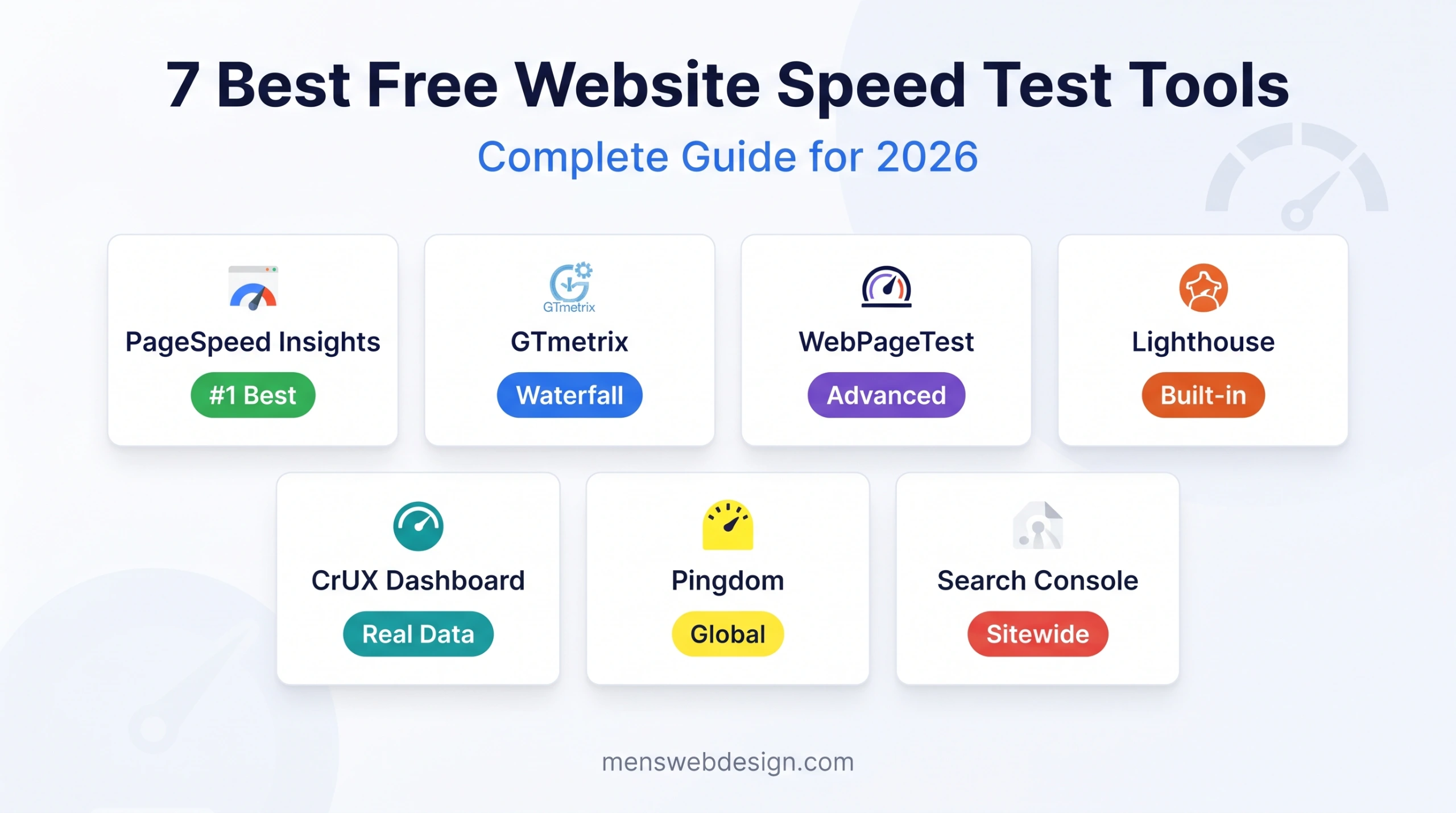
In 2026, there are dozens of website speed testing tools available — but most website owners and developers only need seven of them. Each one measures speed in a slightly different way and reveals different information. Knowing which tool to use, when, and how to read the results is the difference between guessing at performance issues and fixing them precisely.
Let me walk you through the seven best free website speed test tools in 2026, what each one is best for, and how to use the results to actually improve your site.
Why Website Speed Matters More Than Ever in 2026
Before diving into the tools, here’s why this matters so much right now.
Google rankings: Core Web Vitals — LCP, INP, and CLS — are confirmed Google ranking factors. Slow websites rank lower, period. Google measures real user speed data through the Chrome User Experience Report (CrUX), not just lab simulations.
User behaviour: Studies in 2025–2026 consistently show that 53% of mobile users abandon a page that takes more than 3 seconds to load. A 1-second delay in load time reduces conversions by up to 7%.
AI Overview visibility: As I covered in my Google AI Overview SEO guide, fast, technically sound websites are significantly more likely to be cited as sources in Google’s AI-generated summaries.
Speed isn’t a nice-to-have in 2026. It’s a fundamental requirement for any website that wants to rank, convert, and compete.
Understanding the Two Types of Speed Data
Before using any speed tool, it’s essential to understand the difference between the two types of data they use:
Lab Data (Synthetic Testing)
Lab data is collected in a controlled, simulated environment. A tool simulates a specific device (e.g., a mid-range Android phone) on a specific network connection (e.g., 4G) and measures how the page loads under those conditions.
Pros: Consistent, reproducible, detailed — great for diagnosing specific issues Cons: Doesn’t reflect real user conditions — actual visitors have different devices, locations, and connection speeds
Field Data (Real User Measurements)
Field data is collected from real users visiting your site. Google aggregates this data through the Chrome browser and stores it in the Chrome User Experience Report (CrUX).
Pros: Reflects actual user experience, directly used by Google for ranking Cons: Requires sufficient traffic to generate data, less detailed for diagnosing specific issues
The best approach: Use both. Lab data tells you what to fix. Field data tells you how your real visitors are experiencing the site.
Tool 1: Google PageSpeed Insights
URL: https://pagespeed.web.dev Cost: Free Best for: Starting point for any speed audit, Core Web Vitals check, actionable fix recommendations
Google PageSpeed Insights (PSI) is the most important speed testing tool in 2026 — primarily because it’s Google’s own tool and directly reflects how Google evaluates your site’s performance.
What It Measures
PageSpeed Insights shows both field data (from CrUX, if available for your site) and lab data (from Lighthouse). The field data section shows your real Core Web Vitals scores:
- LCP — Largest Contentful Paint (loading speed)
- INP — Interaction to Next Paint (interactivity)
- CLS — Cumulative Layout Shift (visual stability)
- FCP — First Contentful Paint
- TTFB — Time to First Byte (server response speed)
How to Read the Results
Each metric is rated Good (green), Needs Improvement (orange), or Poor (red). Google uses the 75th percentile of your field data — meaning 75% of your visitors experience this score or better.
Below the scores, PSI provides a prioritised list of Opportunities (issues that will most improve load time if fixed) and Diagnostics (additional performance information).
How to Use It
- Test your homepage, your most important service page, and your most-visited blog post separately — scores vary significantly between pages
- Focus on fixing Opportunities first — these have the highest direct impact
- Always test on Mobile tab, not just Desktop — Google uses mobile scores for ranking
- Re-test after making changes to verify improvement
Pro tip: If your site doesn’t have enough traffic for field data (shown as “insufficient data”), PSI will only show lab data. Build traffic first, then use PSI field data to confirm real-world improvement.
Tool 2: GTmetrix
URL: https://gtmetrix.com Cost: Free (with paid plans for advanced features) Best for: Detailed waterfall analysis, historical tracking, video playback of page load
GTmetrix is one of the most popular third-party speed testing tools among developers and SEO professionals. It combines Google Lighthouse scores with its own proprietary analysis and adds several features PageSpeed Insights lacks.
What Makes GTmetrix Unique
Waterfall chart: Shows every single resource your page loads (HTML, CSS, JavaScript, images, fonts, third-party scripts) as horizontal bars on a timeline. This is invaluable for identifying exactly which resources are slowing your page down and in what order.
Video playback: GTmetrix records a video of your page loading, frame by frame. This lets you literally see what a visitor sees as the page loads — identifying layout shifts, delayed content appearance, and visual instability.
Historical tracking: GTmetrix stores your test history so you can compare scores over time and see the impact of changes you make.
Test locations: Test from multiple geographic locations to understand how your site performs for international visitors.
How to Use It
- Run a test on GTmetrix and click the Waterfall tab
- Look for resources with very long bars — these are your biggest bottlenecks
- Identify large unoptimised images, render-blocking scripts, and slow third-party requests
- Use the Video tab to spot visual layout shifts (CLS issues) that might not be obvious from numbers alone
Tool 3: WebPageTest
URL: https://www.webpagetest.org Cost: Free Best for: Advanced performance analysis, real device testing, filmstrip view, multi-step testing
WebPageTest is the most powerful free speed testing tool available — and the one most used by professional performance engineers and senior developers. It offers a level of detail that no other free tool can match.
What Makes WebPageTest Unique
Real device testing: Unlike most tools that simulate a device, WebPageTest can run tests on actual physical mobile devices in real locations around the world.
Filmstrip view: Shows a frame-by-frame visual strip of how your page loads — similar to GTmetrix video but more granular and easier to analyse.
Repeat view testing: Tests your page twice — once for a first-time visitor (no cache) and once for a returning visitor (with cache). This shows the impact of your caching configuration.
Core Web Vitals deep-dive: WebPageTest provides more granular Core Web Vitals data than PSI, including breakdowns of what’s causing each metric’s score.
Script testing: Advanced users can write multi-step test scripts — for example, testing the speed of a login flow, a checkout process, or a search results page.
How to Use It
- Go to webpagetest.org and enter your URL
- Select Test Location closest to your target audience
- Select Browser — Chrome on a mid-range Android for most representative mobile results
- Run the test and focus on the Waterfall, Filmstrip, and Core Web Vitals tabs
- Compare First View vs Repeat View — a large gap suggests your caching configuration needs improvement
Tool 4: Chrome DevTools Lighthouse
Cost: Free (built into Chrome browser) Best for: Local development testing, testing pages behind login, testing staging sites
Google Lighthouse is the same engine that powers PageSpeed Insights — but running it directly in Chrome DevTools gives you additional flexibility that the online tool doesn’t.
What Makes It Unique
Test any page: Unlike PageSpeed Insights, Chrome Lighthouse can test pages that require authentication (admin areas, staging environments, password-protected pages) since it runs in your actual browser session.
No internet required for local testing: Test locally-hosted development sites before deploying.
Custom throttling: Set custom CPU and network throttling conditions to simulate specific devices and connections.
Full audit categories: Lighthouse audits Performance, Accessibility, Best Practices, and SEO all in one report — giving you a broader picture than speed-only tools.
How to Use It
- Open Chrome and navigate to the page you want to test
- Press F12 (or right-click → Inspect)
- Click the Lighthouse tab
- Select Mobile device and check Performance and SEO
- Click Analyze page load
- Review results — pay attention to the Opportunities and Diagnostics sections
Pro tip: Run Lighthouse in an Incognito window to avoid interference from Chrome extensions that may inflate or deflate scores.
Tool 5: Chrome User Experience Report (CrUX) Dashboard
URL: https://lookerstudio.google.com (search “CrUX Dashboard”) Cost: Free Best for: Tracking real user Core Web Vitals data over time at scale
The Chrome User Experience Report is the actual dataset Google uses to evaluate websites for Core Web Vitals ranking. The CrUX Dashboard in Google Looker Studio gives you a visual interface to explore this data for any website with sufficient traffic.
What It Shows
- Real user LCP, INP, and CLS scores over time (28-day rolling data)
- Breakdown by device type (mobile vs desktop vs tablet)
- Distribution of scores across Good / Needs Improvement / Poor ranges
- Historical trends — see whether your optimisations are improving real user experience
How to Use It
- Search “CrUX Dashboard Looker Studio” in Google and open the official template
- Enter your domain (e.g., menswebdesign.com)
- Review the Core Web Vitals trends for the past 6–12 months
- Filter by mobile device to focus on the scores Google uses for ranking
This is the most authoritative speed data available — because it’s the exact data Google uses for ranking decisions.
Tool 6: Pingdom Website Speed Test
URL: https://tools.pingdom.com Cost: Free (with paid monitoring plans) Best for: Quick speed checks, testing from specific geographic locations, non-technical users
Pingdom is one of the most beginner-friendly speed testing tools available. It presents results in a clean, easy-to-understand format without the technical depth of WebPageTest or GTmetrix — making it a good starting point for non-developers.
What Makes It Unique
Geographic testing locations: Test from locations including USA, Europe, Asia-Pacific, and Australia — useful for understanding how your site performs for international audiences.
Simple grading: Pingdom gives your site a straightforward performance grade and identifies the biggest issues in plain language.
Uptime monitoring: Pingdom’s paid plans include uptime monitoring — alerting you if your site goes down. The free speed test tool is a gateway to this broader monitoring service.
Best Use Case
Use Pingdom for quick checks and for sharing results with non-technical clients or stakeholders — the interface is much more accessible than WebPageTest or Chrome DevTools. For deeper analysis, always follow up with PSI and GTmetrix.
Tool 7: Google Search Console — Core Web Vitals Report
URL: https://search.google.com/search-console Cost: Free Best for: Monitoring Core Web Vitals across your entire site, identifying pages that need fixing
Google Search Console isn’t a speed testing tool in the traditional sense — you can’t enter a URL and get an instant score. But its Core Web Vitals report is one of the most valuable performance monitoring tools available for established websites.
What It Shows
- All URLs on your site grouped into Good, Needs Improvement, and Poor categories for both mobile and desktop
- Specific issues affecting multiple pages — for example, “LCP issue: lazy load on LCP image” affecting 47 URLs
- Historical data showing whether your scores are improving or declining over time
- Notifications when new issues are detected
Why It’s Essential
Unlike individual page tests, Google Search Console gives you a sitewide view of performance issues. Instead of testing 50 pages one by one, GSC tells you which pages have issues and groups similar problems together — making it far more efficient for auditing a large site.
How to use it:
- Log into Google Search Console for your property
- Navigate to Experience → Core Web Vitals
- Open the Mobile report — this is what Google uses for ranking
- Click into any issue group to see which specific URLs are affected
- Prioritise fixing issues affecting the most URLs first
Which Tool Should You Use When?
| Situation | Best Tool |
|---|---|
| Quick first check on any site | Google PageSpeed Insights |
| Diagnosing which resources are slow | GTmetrix (waterfall) |
| Deep technical performance audit | WebPageTest |
| Testing staging / login-protected pages | Chrome DevTools Lighthouse |
| Tracking real user data over time | CrUX Dashboard |
| Testing for international audiences | Pingdom |
| Finding performance issues across all pages | Google Search Console |
How to Turn Speed Test Results Into Fixes
Running a speed test is only useful if you act on the results. Here are the most common issues these tools surface and how to fix them:
Slow LCP (Largest Contentful Paint)
- Compress and convert hero images to WebP format
- Add
<link rel="preload">for your above-fold image - Improve server response time (TTFB) — upgrade hosting or add a CDN
- Remove render-blocking CSS or JavaScript above the fold
Poor INP (Interaction to Next Paint)
- Break up long JavaScript tasks (anything over 50ms)
- Defer third-party scripts (chat widgets, analytics, ad scripts)
- Reduce DOM size — aim for under 1,500 nodes
- Remove unused JavaScript
High CLS (Cumulative Layout Shift)
- Set explicit
widthandheighton all images - Reserve space for ads and embeds before they load
- Use
font-display: swapfor custom fonts - Avoid injecting content above existing page elements after load
For a detailed breakdown of every Core Web Vitals fix, read my Core Web Vitals Guide for 2026.
Your Website Speed Testing Workflow
Here’s the exact workflow I use when auditing a website’s performance:
Step 1: Run Google PageSpeed Insights on mobile — note the Core Web Vitals scores and top Opportunities
Step 2: Run GTmetrix — open the waterfall chart to identify the heaviest, slowest-loading resources
Step 3: Check Google Search Console Core Web Vitals report — identify which pages have issues across the whole site
Step 4: Run WebPageTest for a deep-dive on the most important pages (homepage, top service page)
Step 5: Fix the highest-priority issues identified across all three tools
Step 6: Re-test with PageSpeed Insights and GTmetrix to verify improvement
Step 7: Monitor CrUX Dashboard over the following 4–6 weeks to confirm real user scores improve
Speed Test Checklist
Before testing:
- Test on mobile, not just desktop (Google ranks mobile scores)
- Test in Incognito mode to avoid extension interference
- Test multiple pages — homepage, service page, blog post
What to record:
- Mobile PageSpeed Insights score
- LCP, INP, CLS values
- Largest resources by file size (from GTmetrix waterfall)
- Number of third-party requests
- TTFB (Time to First Byte)
After testing:
- Fix top Opportunities from PageSpeed Insights first
- Optimise images identified as oversized in GTmetrix
- Defer or remove slow third-party scripts
- Re-test to confirm improvement
- Set up Google Search Console monitoring for ongoing tracking
Frequently Asked Questions
What is the best free website speed test tool in 2026? Google PageSpeed Insights is the best starting point — it uses real user data and provides actionable fix recommendations. For deeper analysis, combine it with GTmetrix for waterfall charts and Google Search Console for sitewide monitoring.
How fast should a website load in 2026? Your LCP should be under 2.5 seconds on mobile, INP under 200ms, and CLS under 0.1. A PageSpeed Insights mobile score of 90+ is the target. Most users expect interactive content within 3 seconds — beyond that, bounce rates increase sharply.
Why does my website score differently on different speed test tools? Different tools use different testing conditions — simulated devices, locations, network speeds, and measurement methodologies. Some use lab data, others use real user field data. This is normal — use multiple tools together for the most accurate picture.
Does website speed affect Google rankings? Yes — directly. Core Web Vitals (LCP, INP, CLS) are confirmed Google ranking factors. Google measures real user speed data via the Chrome User Experience Report. Improving your actual speed for real visitors improves your rankings.
Final Thoughts
Website speed in 2026 isn’t just a developer concern — it’s a direct business concern. Slow websites rank lower, convert fewer visitors, and lose customers to faster competitors.
The seven tools in this guide give you everything you need to measure, diagnose, and fix your website’s performance — all for free. Start with Google PageSpeed Insights today, fix the top three issues it identifies, and re-test. That single cycle of improvement can make a significant difference to both your rankings and your visitor experience.
If you’d like a professional performance audit of your website — with a prioritised fix list and hands-on implementation — get in touch with me. Website speed optimisation is one of my core specialities, and the results are always measurable.